Introduction
Accessing AWS resources from outside AWS using only temporary credentials and without creating an IAM user with an access key is a problem that everyone who frequently works with AWS faces at one point. AWS IAM Roles Anywhere helps to solve this issue by enabling applications running on servers on premises to access AWS resources with AWS temporary credentials. It relies on public key infrastructure (PKI) for establishing trust between AWS and the workloads having certificates issued by your own private certificate authority (CA). You create a trust anchor by referencing your own certificate authority (CA) and then configure a role to trust IAM Roles Anywhere by mentioning the trust anchor in the trust policy. In addition, you place a condition in the trust policy to restrict the access to only a specific common name (CN) of a certificate.
I recently had a use case where an application running inside a pod on an external Kubernetes cluster needed to access AWS resources. Something similar to IAM roles for service accounts (IRSA) would have been ideal, but IRSA cannot work on pods running on external Kubernetes clusters. A very straightforward solution to this problem is to use an IAM user with an access key, but this is not ideal and the security department will not be happy having static credentials being used by the application. Let’s see how we to set up IAM Roles Anywhere to be used from the application running inside a Kubernetes pod.
IAM Roles Anywhere Setup inside AWS
We have to do two steps inside AWS to configure IAM Roles Anywhere:
- Establish trust: create a trust anchor.
- Configure IAM roles properly: properly adjust the trust policy and permissions.
In order to establish trust, we can set up a Certificate Authority (CA) using AWS Certificate Manager Private Certificate Authority or use an existing company CA to create a trust anchor. We had an existing CA, so we will be using it in the following steps.
First step: create a trust anchor, choose external certificate bundle, and paste the PEM-encoded certificate bundle in the field.
The second step is to configure the IAM role properly. You can attach the necessary permissions to the role directly. The trust policy will dictate the conditions under which the role can be assumed. Here is an example trust policy that can be used for our use case:
| |
Notice that the Condition part can list all the details of the certificate that the pod is using such as the common
name (CN), the organization (O), the DNS name (DNS), etc. You can decide which parts of the certificate are
important for your use case but as a minimum include the CN and DNS details.
After setting up the trust anchor and the IAM role properly, the application holding a valid certificate signed by the
CA can assume the role to access AWS resources if the certificate matches the conditions in the trust policy. For
example, if the certificate has the common name myAwesomePodApp, and the DNS name myAwesomePodApp.com, is signed by
the CA awesome-internal-ca, and all the other specified conitions inside the trust policy, the application can assume
the role.
IAM Roles Anywhere Setup on Kubernetes Pods
To use IAM Roles Anywhere and get temporary credentials, we need to install the official credential helper tool. The helper tool manages the process of calling the endpoint to get session credentials and automatically refreshing them before they expire by using the certificate and associated private key. The helper tool has three commands that are interesting for us:
| |
The first command credential-process would retrieve the credentials by providing the certificate and private key. The
trust anchor arn along the profile arn can be fetched by clicking on the respective details in the IAM Roles Anywhere
console. For example, the below command would retrieve the temporary credentials when run from the terminal:
| |
The update command would obtain the temporary credentials and write them directly to the AWS credentials file. The
serve command is a very interesting option for us because it allows us to run a local endpoint that vends temporary
security credentials from IAM Roles Anywhere acting like a local token vending machine endpoint. This endpoint can be
used by applications running inside the Kubernetes cluster or other VMs to obtain temporary credentials. Our legacy
application can benefit from the serve command by consuming the temporary credentials using that endpoint.
Here is an example of the serve command with identical parameters to the command above:
| |
The serve command starts a local server that listens on 127.0.0.1 at the default port 9911. We can then use the
local endpoint as follows with the aws cli:
| |
After that, you can run the aws cli commands as usual. This is an example if the aws cli is not available and the aws sdk cannot be used by the application for some reason:
| |
Notice that it implements the same URIs and request headers as IMDSv2. The command will also automatically refresh the credentials five minutes before the previous ones expire.
Architecture Diagram
Here is the architecture diagram of the entire solution:
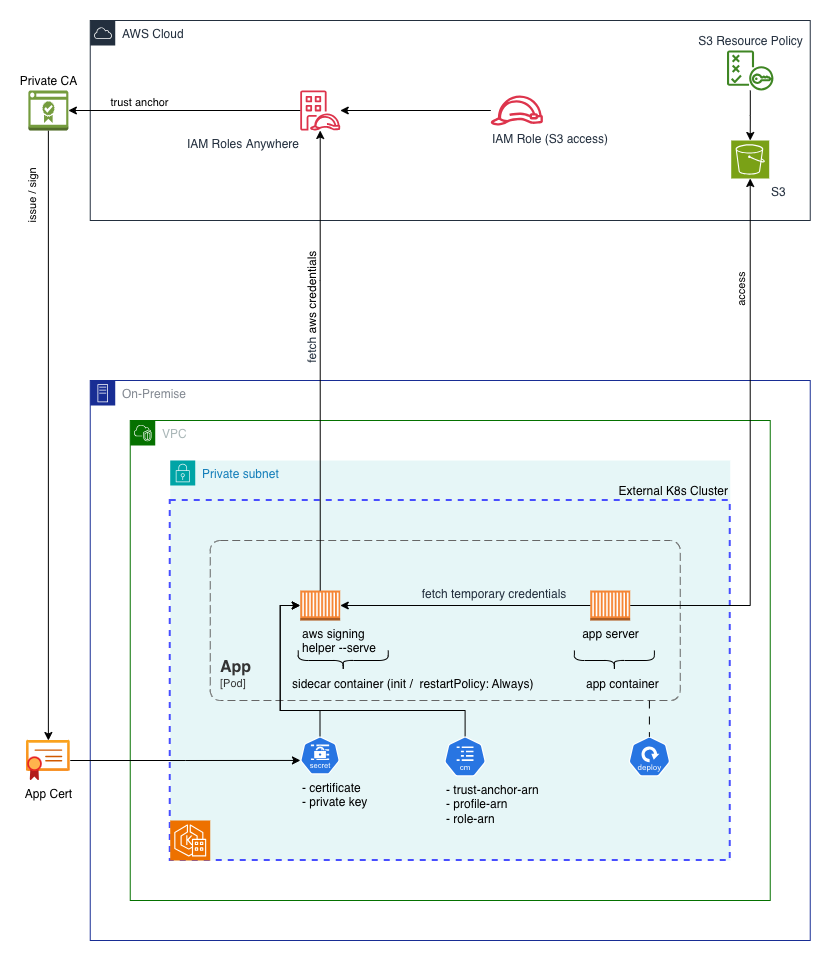
We have two pods running in the external Kubernetes cluster outside AWS:
- The application pod.
- It uses the temporary credentials that are fetched by the sidecar container.
- The AWS Signing Helper Pod running as a sidecar container.
- It uses the certificate and private key mounted as a secret.
- It uses the parameters needed to call the credential helper tool mounted as a config map.
We discuss the Kubernetes manifest files below.
AWS Signing Helper Pod
The sidecar container for the credential helper tool is a simple container image that uses the official AWS CLI image as the base image:
| |
For convenience, we will store the built image in ECR and call it iamra_aws_signing_helper.
Certificate Secret Manifest File
Here is the manifest file that stores the certificate and private key:
| |
Config Map Manifest File
Here is the manifest file that stores the parameters needed to call the credential helper tool:
| |
Application Pod Manifest File
Here is the manifest file that runs the application pod and the sidecar container:
| |
The iamra-aws-signing-helper container runs the credential helper tool with the parameters from the config map. The
application container myAwesomeApp sets the environment variable AWS_EC2_METADATA_SERVICE_ENDPOINT to the local
endpoint and uses the aws cli to access S3 resources. The legacy application now can access AWS resources without
having to use static credentials. The credential helper tool will automatically refresh the credentials five minutes
before expiration time.
Conclusion
In this post, we configured IAM Roles Anywhere and set up the credential helper tool as a sidecar container in a Kubernetes pod to allow a legacy application to access AWS resources without using static credentials from an IAM user. We used the application certificate signed by our own private CA to fetch the temporary credentials from IAM Roles Anywhere. The application could then consume these credentials and access the needed AWS resources.
References: