Introduction
| |
What’s wrong with this step inside the GitHub Actions workflow? Yes, it’s not the best way to authenticate to AWS
because AWS_ACCESS_KEY_ID and AWS_SECRET_ACCESS_KEY were used to configure the credentials. This means having to
manage an IAM user with valid access keys. This means that these keys have to be rotated regularly. This means that
someone has to copy and paste those static credentials into the secrets and make sure they are not leaked or
compromised somewhere else.
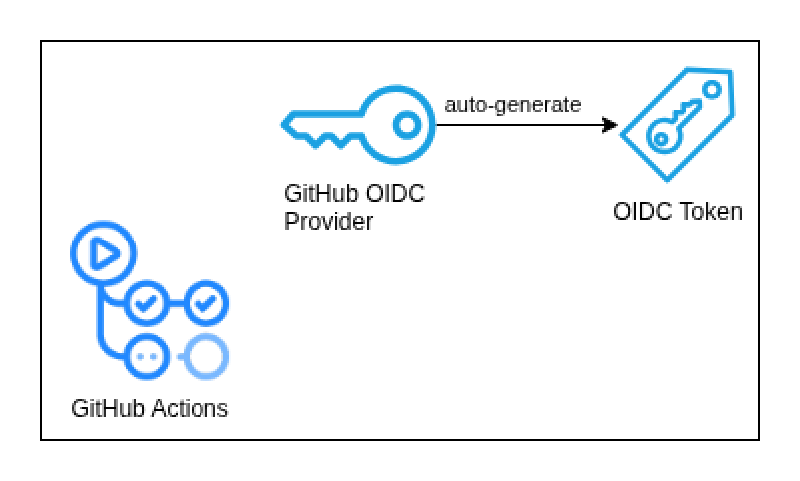
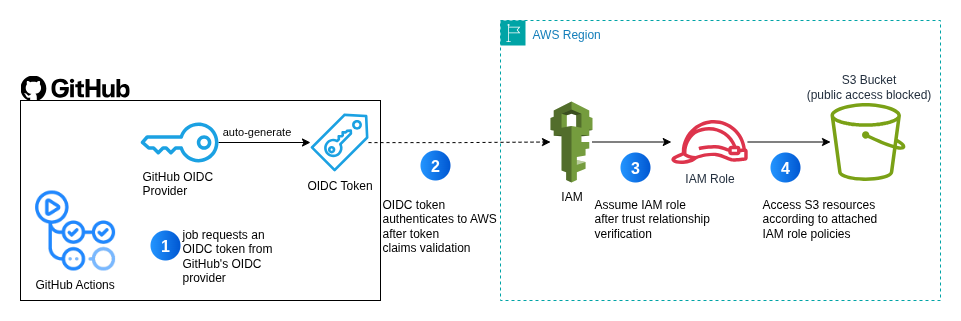
What’s the best practice to authenticate to AWS in a pipeline you may ask? The answer is OpenID Connect (OIDC). OpenID Connect allows your workflows to exchange short-lived tokens directly from your cloud provider. Let’s see how to configure this in GitHub Actions and deploy to AWS using this method.
AWS IAM Identity Providers
Before allowing GitHub Actions to authenticate to AWS, we need to configure an OpenID Connect provider in AWS IAM. Inside the AWS IAM console, go to Identity Providers and create a new OpenID Connect provider. Use the following details for the configuration:
- Provider URL:
token.actions.githubusercontent.com - Audience:
sts.amazonaws.com
After setting up the provider, we can create an IAM role forGitHub Actions to assume it.
AWS IAM Role and Trust Relationship Policy
create a new IAM role with the following trust policy that allows the OIDC provider to assume the role with web identity:
| |
Let’s break down the trust relationship policy:
FederatedPrincipal: the OIDC provider ARNStringEqualsCondition: the OIDC token audience (aws sts)StringLikeCondition: the GitHub repository and branch patterns that the role can be assumed from. Here we allow the role to be assumed from any branch or tag in the GitHubRepo repository.
We can use wildcards in the repository and branch patterns to allow multiple repositories and branches to assume the role. We can also define only specific branches or tags to allow only specific branches or tags to assume the role. For example:
Allow only the main branch:
| |
Allow any branch:
| |
Allow only tags from multiple repositories:
| |
These fine-grained permissions should be used to restrict access to the role accordingly. After creating the role with the trust policy, we can attach the IAM policy that allows the role to do whatever we would like to do inside AWS such as write to S3 buckets, update ECS tasks, etc.
GitHub Actions Workflow
After setting up the IAM role and trust relationship policy, we can configure the GitHub Actions workflow to assume the role and deploy to AWS. Here is an example workflow that deploys a Hugo site to S3:
| |
Let’s break down the workflow:
- The
id-tokenis used in combination with OpenID Connect. Setting the permissions to write is required in order to request an OpenID Connect JWT Token as described in the docs. - The
configure-aws-credentialsaction is used to configure the AWS credentials using the OpenID Connect JWT Token. Notice that we are not using theaws-access-key-idandaws-secret-access-keyinputs. We only specified the role ARN and session name. - The
Setup Hugostep installs Hugo on the runner. - After building the Hugo site, the
Deploy to S3step deploys the site to S3 by copying over the generated public folder using the AWS CLI:aws s3 sync ....
Here’s a diagram of the OIDC workflow:
Conclusion
In this post, we saw how to configure GitHub Actions to authenticate to AWS using OpenID Connect. An example Hugo site deployment to S3 was used to demonstrate the workflow. I hope this post was helpful and you learned something new. Let’s stop using IAM users with static credentials inside CI/CD pipelines!
References: